


Use a Raspberry Pi Zero an a few other products to build your compact close loop with OpenAPS
(Everything in [ ] is only used for the initial setup)
- 1x Raspberry Pi Zero (Get a starter pack here)
- 1x Micro SD Card 8GB
- [Some way to connect your Raspberry Pi Zero to the internet]
- I used an Raspberry Pi 2 I had laying around (I basically set up Raspbian and downloaded everything following on the Raspberry Pi 2/3 and then swap the micro SD card to the Raspberry Pi Zero
- You also can use a WiFi USB dongle
- [1x Micro HDMI to HDMI adapter]
- [1x USB OTG to USB adapter]
- [Keyboard]
- 1x Power management aka PowerBoost (Powersuply + Battery charger)
- 1x Battery
- 1x Radio Module
- 1x CC-Debugger to flash the chip with a custom software
- Some soldering skills + soldering equipment
- A steady hand
- Tools (tweezers, side cutters, double sided tape...)
- Basic Linux knowledge (mainly on the commandline)
- And of course an OpenAPS compatible pump
You will get a small portable Raspberry Pi based device with a decent battery life and a much better and stabile communication to your pump. Because we won't use that overpriced crappy CareLink stick.
You won't get a finished product that you can clip on like your insulin pump. Its basically just 3 PCBs glued together and bundled with a big battery. I am still working on a clip on option, but I still have had the right idea. Feel free to share yours:) You also won't get a complete guide on how to setup your close loop, but I include all the links, so just follow along and I am sure you will make it!
- You need to setup Raspbian, it is the operating system we use for the Raspberry Pi Zero
- Download here. I am using Jessie Light because we don't need the fully fledged Raspbian
- Once downloaded you need to burn the files to the SD card, follow this instructions and you are good to go
- Setup OpenAPS
- The best source is the webpage it self, it is worth reading through the documentation
- Prepare your radio module
- Follow this tutorial to flash the radio module, below you will find the color codes matching the colors used in the tutorial
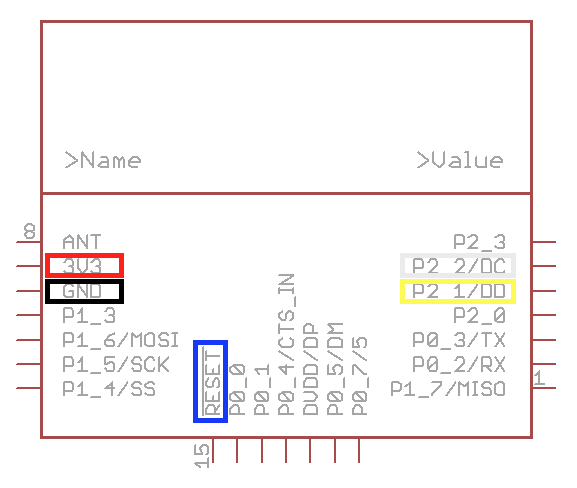
*This schematic is from [openmicros.org](http://openmicros.org/index.php/articles/88-ciseco-product-documentation/259-srf-technical-data)* 4. Setup [MMowlink](https://github.com/oskarpearson/mmeowlink/wiki/Installing-MMeowlink) (used to allow OpenAPS communicate with the radio module) if you have not already
Now swap your micro SD card in your Raspberry Pi Zero if you have not already
- If you want to access your Raspberry Pi Zero via USB there is an option for that 😊
- The Raspberry Pi Zero is capable of emulating USB devices with the USB OTG port, so we can simulate an Ethernet adapter. If you connect your Raspberry Pi Zero with your PC the Raspberry will create its own network. This allows you to directly ssh you into your Raspberry Pi Zero. Please keep in mind, that if you enable this you won't be able to use a USB device on your Raspberry Pi Zero anymore.
- If you want to extend the battery live of your close loop you can disable the HDMI components and the ACK LED
- Disable HDMI (Keep in mind that you won't get any output on the HDMI port if you do this)
- Edit rc.local by executing
sudo nano /etc/rc.localin your Raspberry Pis command line - Add
/usr/bin/tvservice -obeforeexit 0
- Edit rc.local by executing
- Disable ACK LED (The ACT LED is the little green LED that indicates, that your Raspberry Pi Zero is running)
- Follow this instructions
- Disable HDMI (Keep in mind that you won't get any output on the HDMI port if you do this)
I recommend you to create a backup of your micro SD card, so you won't loos all the hard work!
Congratulations, the software part is done 👍
This may be a bit tricky if this is your first solder job, take your time and don't be frustrated if it is not working the first time.
I am using an enamelled copper wire, so everything looks cleaner, but you can use normal wires to.
- We want to power the Raspberry Pi Zero
- We need to glue the PowerBoost PCB on the back of the Raspberry Pi Zero like this
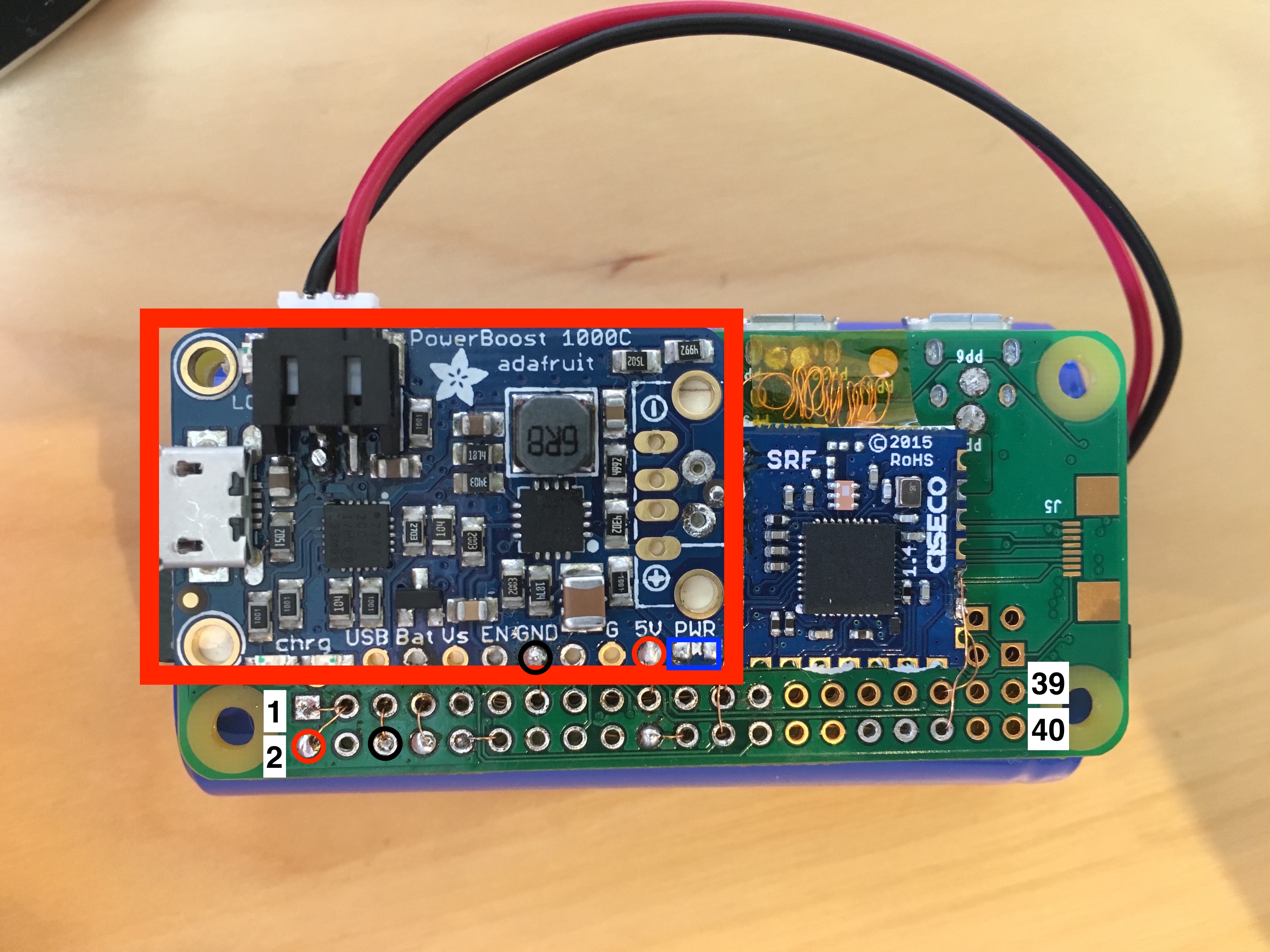 As a pro tip I also desoldered the PWR LED of the PowerBoost PCB (lower right side on the board), so can sleep better and wont get blind looking at it
I am using a very strong double sided foam tape, be careful when placing it on the Raspberry Pi Zero, it is very hard to remove it and not breaking it! - Next we need to solder the power wires from the PowerBoost to the Raspberry Pi Zero
- 5V: Solder a wire from the PowerBoosts 5V output (on the lower side of the board) to the Raspberry Pi Zeros 5V GPIO pin 2
- GND: Solder a wire from the PowerBoosts GND output (also on the lower side of the board) to the Raspberry Pi Zeros GND GPIO pin 6
**Be careful when soldering directly to the GPIO pins. We are using the Raspberry Pi upside down, so double check what hole you solder to, desoldering is a pain in the ars if you don't have the right tools!**
When you think everything is soldered correctly you can connect the battery. Your Raspberry Pi Zero should run from a battery if everything went well:) * If you disabled the ACK LED you will only see a very quick flash * You also can connect your Raspberry Pi Zero to the battery and also plug in the USB cable into Raspberry Pi Zeros USB OTG port to access it via USB * **Disconnect the power again!**
- We want to communicate with the insulin pump
- Her we first solder every wire to the SRF board, then glue it down and then solder the wires to the Raspberry Pi Zero
- Solder the wires according to the color in the picture below

- Solder the wires according to the color in the picture below
- Choose the right frequency
- By default the MMowlink will use the US frequency which is awesome if you live in the US and have an US pump, but for us non US citizens we need to do an additional step
- Everytime the Raspberry Pi Zero boots we need to execute a little command to tune it for the World Wide frequency band
- Edit
rc.localby executingsudo nano /etc/rc.localin your Raspberry Pis command line - Add
su pi -c '/home/pi/mmeowlink-source/bin/mmtune.py --port /dev/ttyAMA0 --radio_local WW --serial <PUMP_SERIAL_NUMBER> < /dev/null &'beforeexit 0
*WW means World Wide* - Edit
- Everytime the Raspberry Pi Zero boots we need to execute a little command to tune it for the World Wide frequency band
- [Optional] Increase the range with an antenna
- With the SRF module we already have a greater range then with the CareLink USB stick, but we can tweak it a bit by soldering an approximately 8cm (3,14 inch) wire to the SRF module. With this you can even penetrate a wall 😊
- Now check if everything works
- The best way to check if everything works is to communicate with the pump
Do this by `cd` in your `openaps` directory on your Raspberry Pi Zero, then you can execute `openaps use status` to get the current status of your pump. If you get a response that is formatted like a JSON everything you have done was right!
If something is not working you need to find the issue
Congratulations, your ZeroAPS is ready to use now 🎉
- Faulty solder connections
- Check your solder connections with a multimeter
- Can't communicate with the pump because of low battery or out of range error
- You might use the wrong frequency
- Step 3 of the the hardware part explains it pretty well
- Your pumps battery might may really be low, go and check it!
- Antenna soldering issues
- Desolder the antenna, lay your pump near the Raspberry Pi Zero and try it again
- SRF module is defect
- I had an old one laying around, but it was broken. I checked it by measuring the voltage of the "HeartBeat"-Pin (Pin 1 on the SRF module board). The voltage should be around 3.3V when your Pi is connected to power.
- You might use the wrong frequency
- The Raspberry Pi Zero can't be powered by the PowerBoost
- Check if the PowerBoost is working correctly
- Measure the voltage on the GND and 5V pins we soldered to (Battery or USB needs to be plugged in to the PowerBoost of course 😊)
- Check if the PowerBoost is working correctly
- OpenAPS does work with the SRF module
- Repeat part 4 of "Lets start with the software"
Please contact me if you are having questions about ZeroAPS.
I can also borrow you the CC-Debugger if you live in Germany or Austria (Shipment goes on you).